

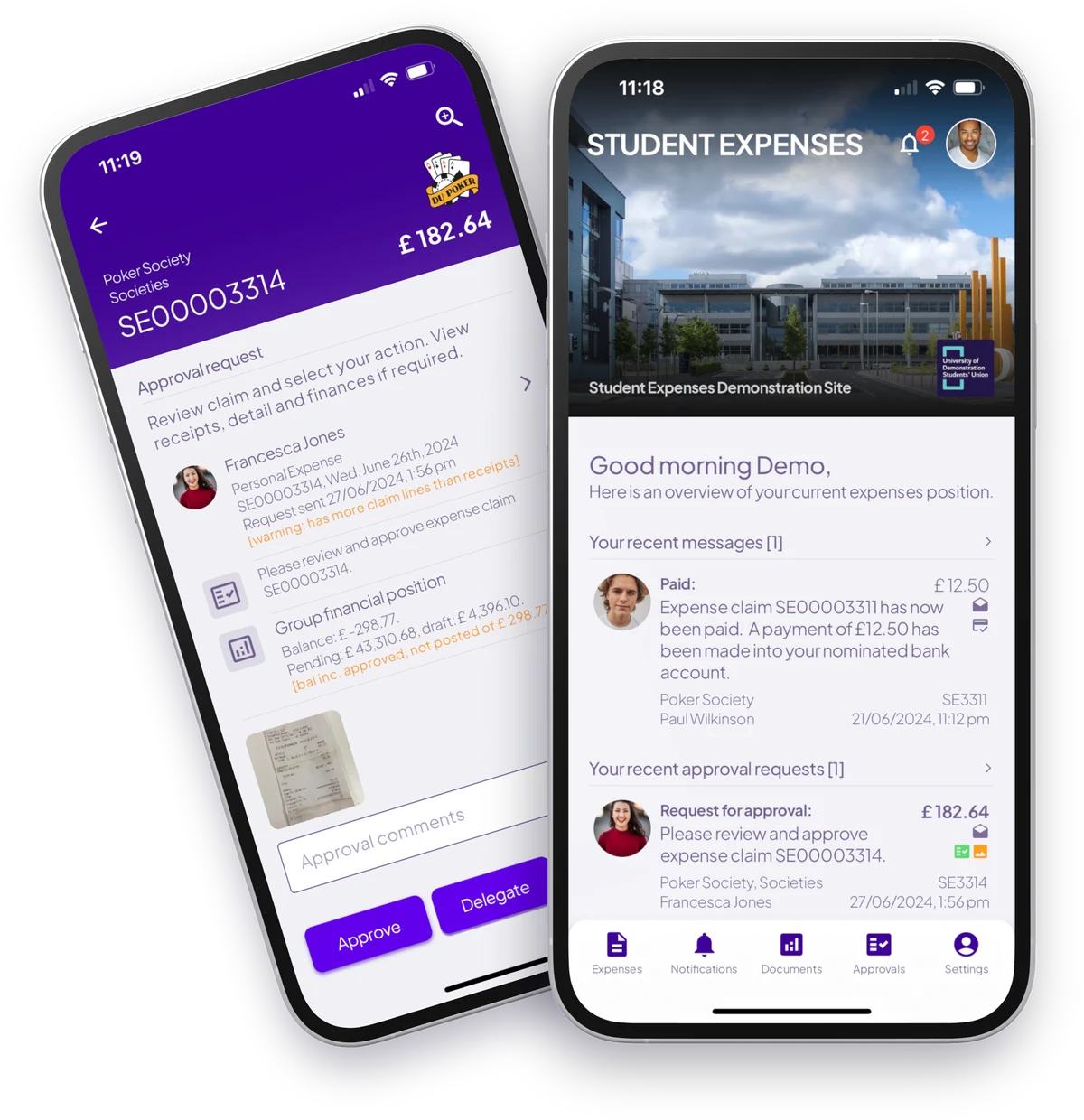
Submit a claim
Four steps, about two minutes.
Once you're registered, every claim works like this. These screens are from the phone app, and the web app works the same way.
First time? Register your user
- 1Tap Register on login screen
- 2Enter student email or number
- 3Check inbox for password
- 4Sign in and add bank details
-
1
Start a claim
Tap New, choose your club or society, and add a reference so you can find it later.
-
2
Add your lines
One line for each thing you're claiming for, and as many lines as you need. Three ways to add one ↓
-
3
Attach your receipts
Snap a photo or upload a PDF. Receipts you scan with AI are attached for you.
-
4
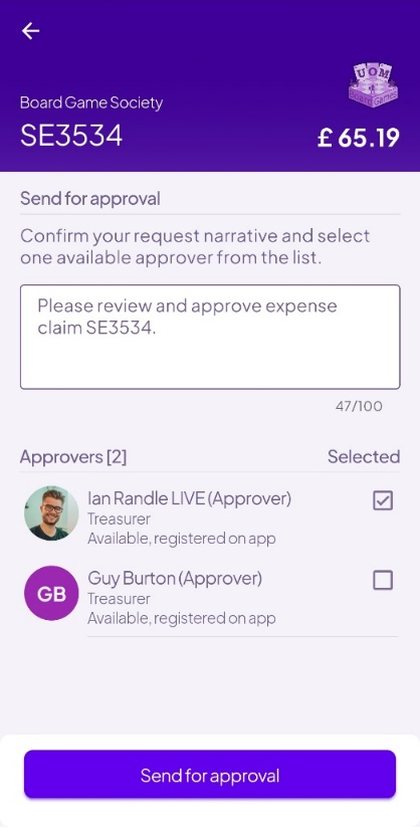
Send for approval
Preview it as a PDF if you like, add a message, pick your club's approvers and send.
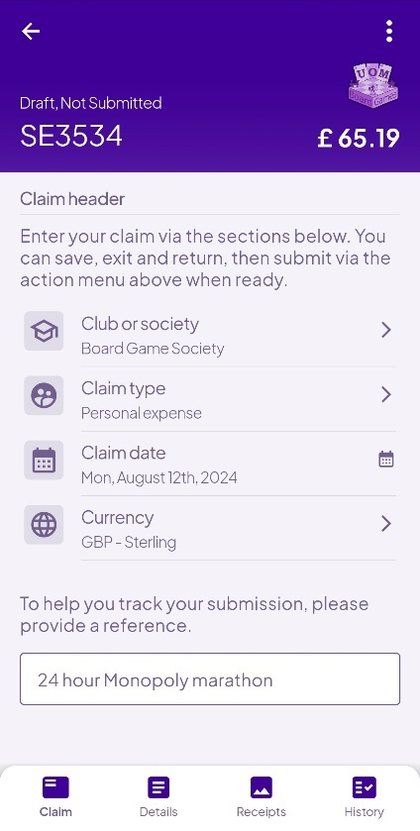
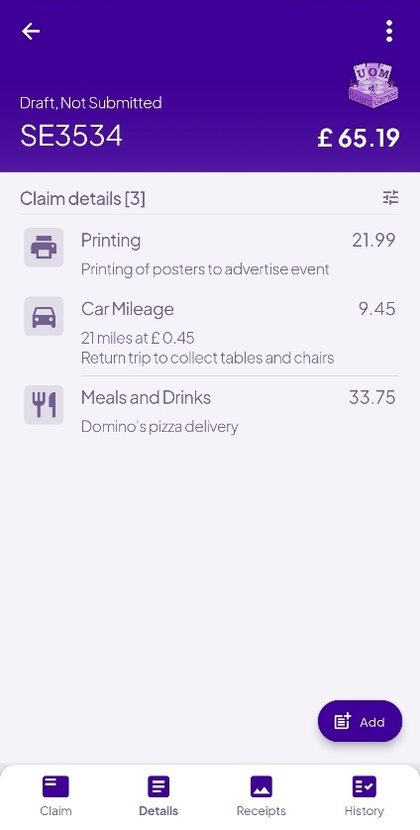
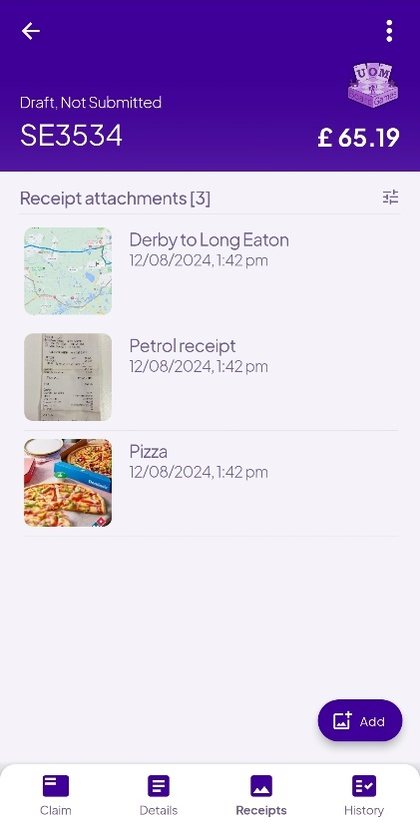
Step 2, in more detail
Three ways to add a line
Mix them on the same claim. A meal you typed in, a scanned receipt and a car journey can all sit side by side.
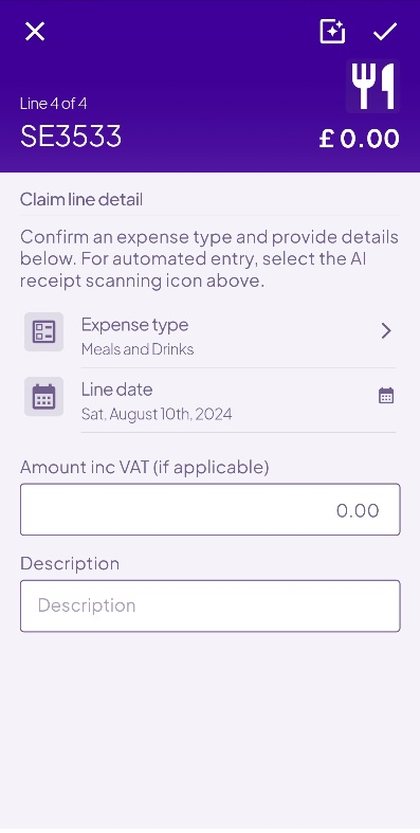
Type it in
Choose an expense type, such as meals and drinks or printing. Then enter the amount and a short description, and tap the tick to save the line.
The expense type tells your SU's finance team what the money was spent on, so pick the closest match.
Scan the receipt with AI
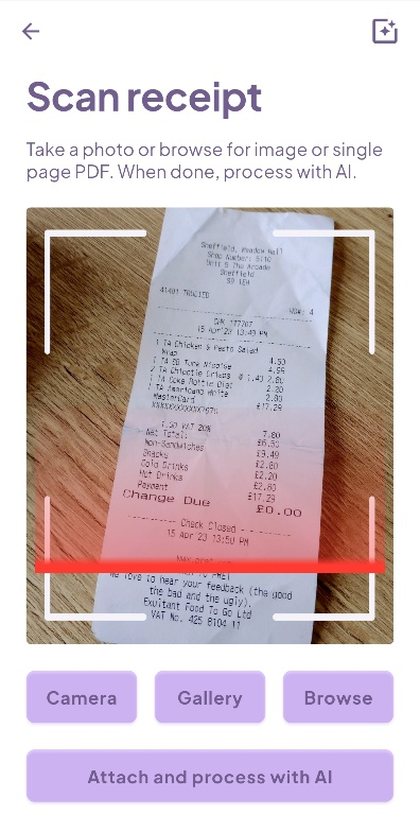
- 1Tap the scan icon on the line. Take a photo of the receipt, or choose an image or PDF, then tap Attach and process with AI.
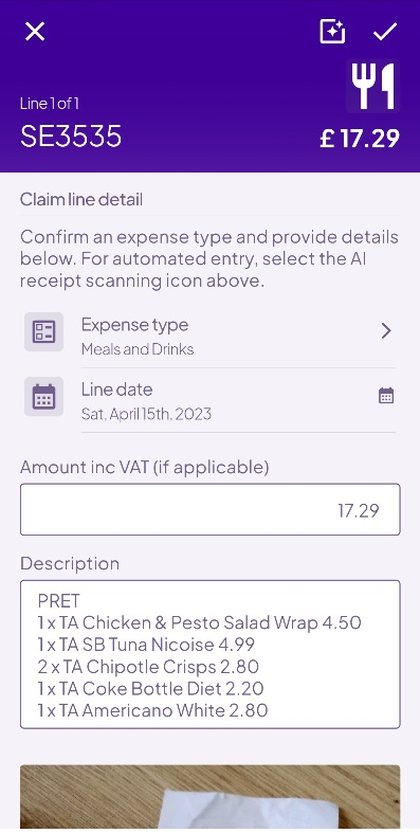
- 2The date, the description and the amount are filled in for you. Check them, change anything you need, and the receipt is attached to your claim.
Mileage, worked out for you
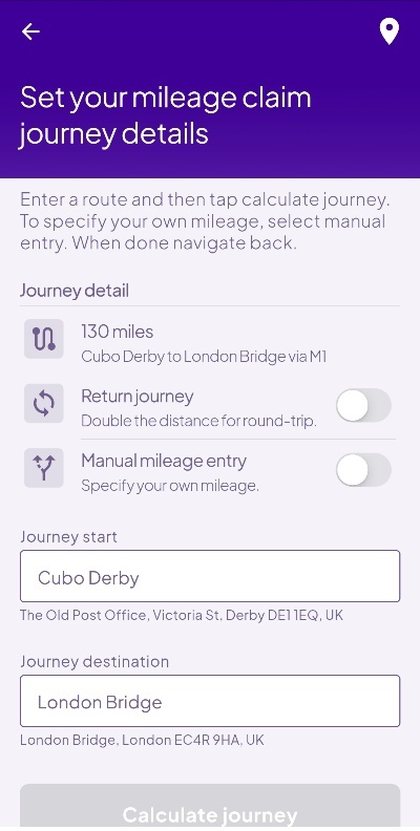
- 1Choose a mileage expense type and tap the journey. Enter where you set off and where you went: a postcode, a town or a business all work.
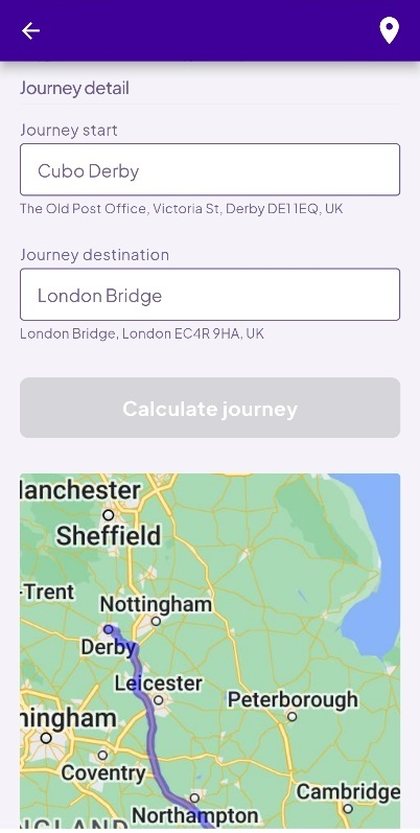
- 2Tap Calculate journey and Google Maps works out the miles. Switch on Return journey to double it. The route map is attached to your claim automatically.
Took a different route? Switch on manual mileage entry and type the miles yourself. For clarity, your approvers will see that you entered them by hand.
Not finished? Tap Save and your claim stays as a draft in your claims list, ready to pick up later.
Done? Submit and track it. You'll be notified when it's approved, queried or paid.
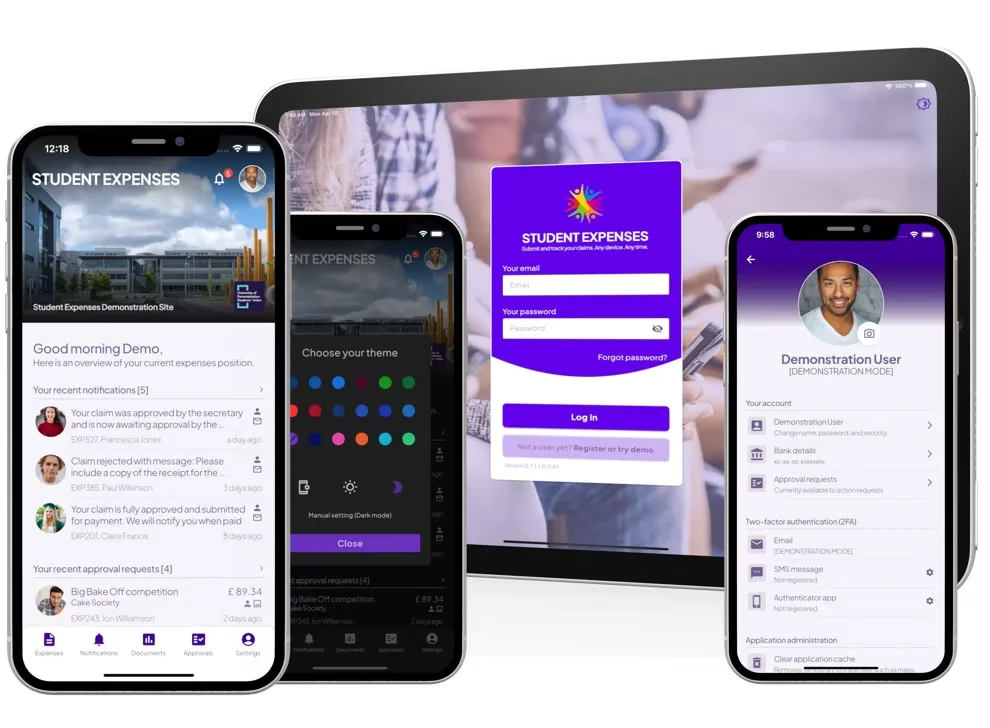
Want a practice run? Tap Try demo login in any version of the app.
Spend less time on paperwork and more on your club.
More than 21,000 students at 14 Students' Unions already claim this way.
Videos and guides
Prefer to watch first?
Presidents and treasurers
Running a club? You approve its claims too.
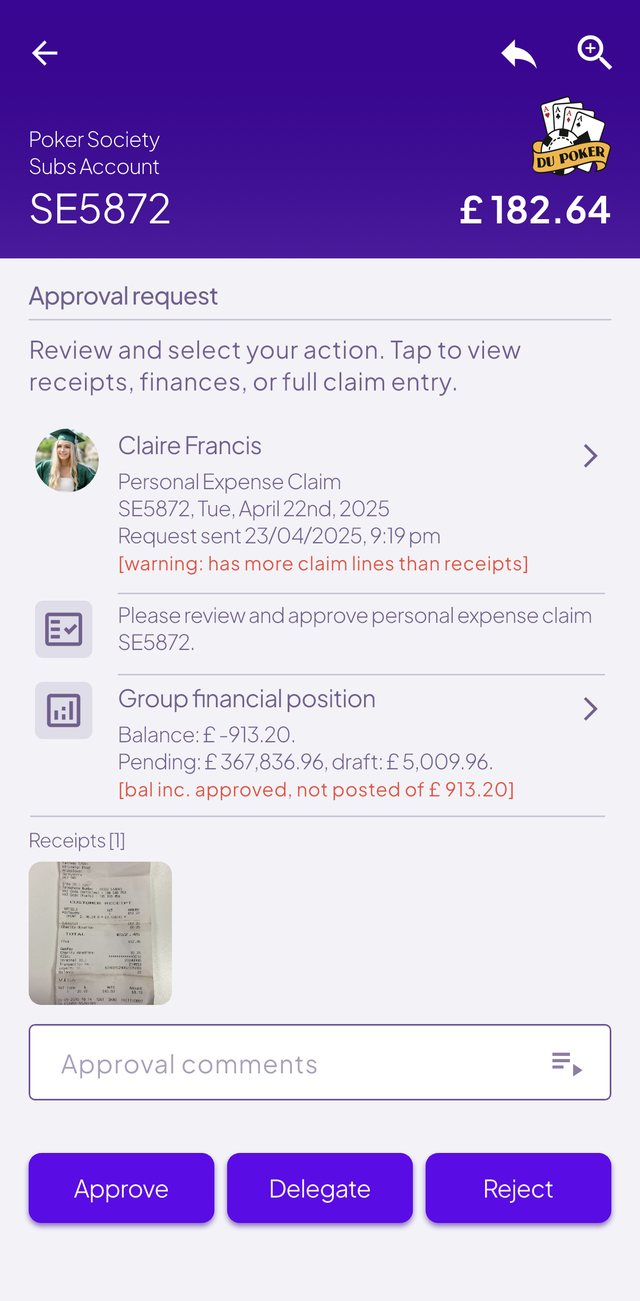
When a member submits a claim, you get a notification. You see the receipts and your club's balance on one screen, then approve, delegate or reject. You can also drill into your club's income and expenditure.
Guide for club leadersHelp and FAQs
Common questions
Still stuck?
Have you registered?
You need to register once before you can sign in. Choose Register or try demo on the sign-in screen and use your student email or student number. See how, or watch the registration video.
Can't sign in?
Choose Reset password on the sign-in screen. If you can't remember which email you registered with, choose Forgot my email and enter your student ID and Students' Union. More help. If neither works, contact your SU's activities or finance team: your account comes from your SU, so they can check it for you.
Waiting to be paid?
Approved claims are paid by your SU's finance team, not by Student Expenses. Ask them about payment dates.
Group, bank details or permissions?
Contact your SU's activities or finance team first. These come from your SU's systems, so they can sort them out fastest.
Problem with the app itself?
Tell us using our contact form, including which app you were using (iPhone, Android or web).
What is Student Expenses?
It's how you claim back money you've spent for the clubs and societies you're a member of. Submit your receipts, your club's approvers sign them off, and your SU pays you straight into your bank account. Some clubs also let you submit supplier invoices, which are paid to the supplier, not to you.
Do I need to pay for a licence?
No. Your Students’ Union subscribes, so it’s free for you to use.
Which email should I sign in with?
Usually your student email. You can also use your student number, and we'll look up the email you used to join your clubs and societies. If it isn't recognised you can choose your university from a list. Once registered, always sign in with the same email. Forgotten which one you used? Choose Forgot my email on the sign-in screen and enter your student ID and Students' Union. If we find you, we'll email you. If you still can't register or sign in, contact your SU's activities or finance team, as they manage your account.
I can't see my club or society
Your groups come from your SU’s membership system. If one is missing, check your membership is active, then contact your SU’s activities team.
Can I use it on more than one device?
Yes. Install it on as many devices as you like and your claims are available on all of them.
Is there a demo?
Yes. On the sign-in screen choose Register or try demo, then Try demo login. You can use the demo at any time to try out features, then sign back in to your own account.
I've forgotten my password or email, or the reset isn't working
Choose Reset password on the sign-in screen and enter the email you registered with. We'll email you a new password that lasts 24 hours. If it doesn't arrive, check your junk folder. If you're not sure which email you registered with, choose Forgot my email and enter your student ID and Students' Union; if we find you, we'll email you. If your account is locked, wait 30 minutes before trying again. Still stuck? Contact your SU's activities or finance team: they manage your account and can check it for you.
My claim is approved. When will I get paid?
Your SU's finance team pays approved claims straight into the bank account your SU holds for you. We can't see or chase payments, so contact your SU's finance team if you have a question about when you'll be paid. You'll get a notification in the app once your claim is marked as paid.
Why is my account locked?
Five incorrect password attempts lock your account for 30 minutes on all devices. A password reset sends a new password that lasts 24 hours, but you can only use it once the lock has ended.
What is MFA?
An extra security check when you sign in on a new device. You'll get an email code when you register, and you can turn on SMS or an authenticator app later.
Can I use Face ID or Touch ID?
Yes, on supported phones and tablets. Tap your avatar, then Change your settings.
Why do I have to sign in again?
For security, the app asks for your password when you come back to it. Turn on Face ID or Touch ID to make this quicker, or switch it off in settings.
What's on the home screen?
Your recent notifications, anything waiting for your approval, and a summary of your claims. Each section links to the full list.
What image sizes should I use?
Your avatar is your personal profile picture: 400 × 400 px. If you’re an admin user you can also set the welcome banner images: 1080 × 360 px for mobile, and 1584 × 396 px for web and desktop.
Used by Students' Unions across the UK
- students registered
- 21K+
- claims entered
- 60K+














Work at a Students' Union?